Adding a new raw material to the inventory
This guide explains how to add a new raw material to the inventory from the merchant app, including setting value and unit name.
Prerequisites
- You are logged in to the merchant app with a role that has edit access to Inventory.
Step 1: Open the Inventory module
- From the main navigation bar, click Inventory.
- In the Inventory page, click the Base Menu tab if it is not already selected.
Step 2: Start adding a new raw material
- Click the Add new material
 .
. - A New raw material add form or dialog appears.
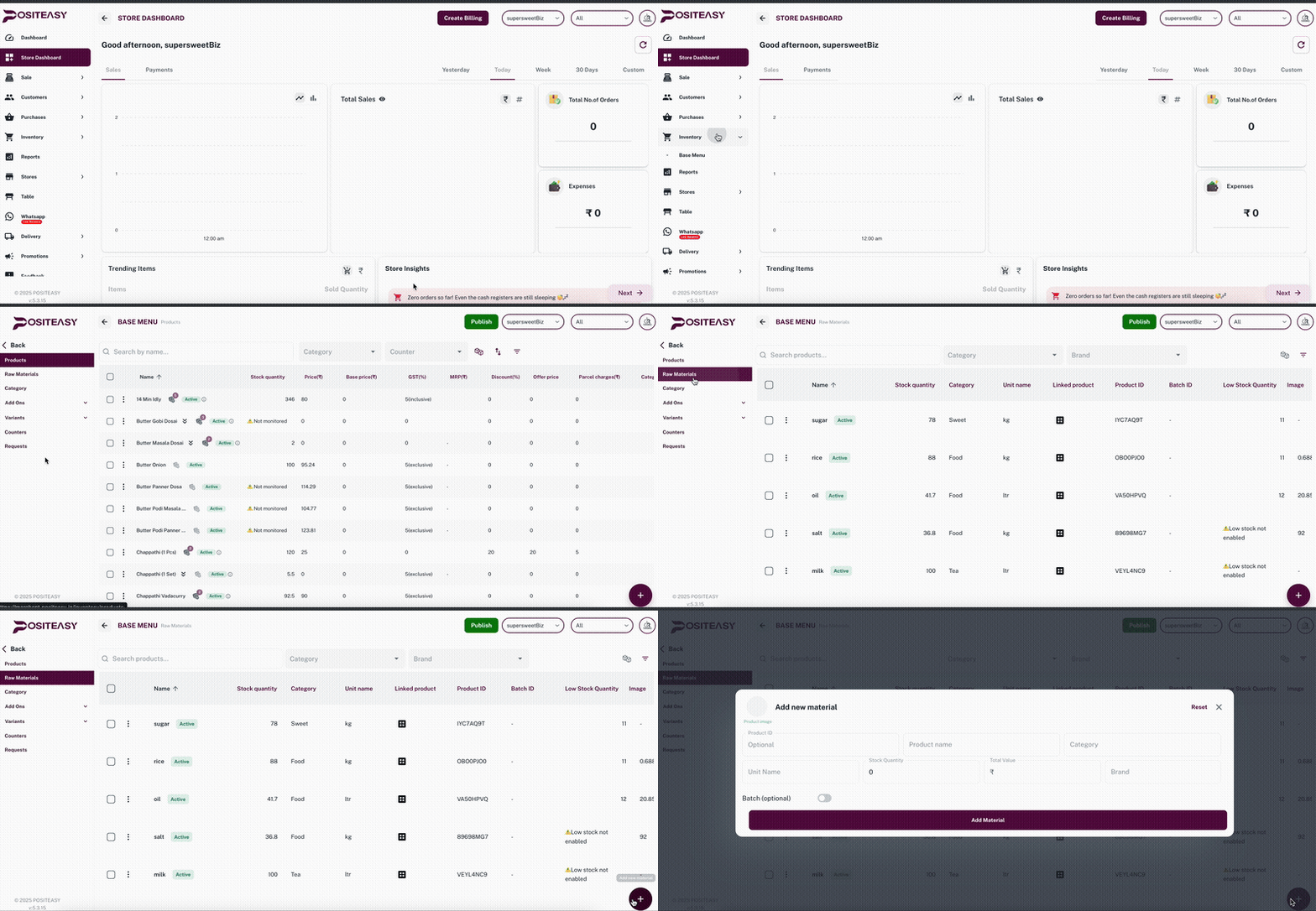
Example of the Inventory → Raw materials list page.
The new Raw material form with basic details section.
Step 3: Enter basic details
In the Basic details section, fill in:
- Product name: The raw material name.
- Category: Choose an existing category (for example, Vegetables, Spices, Packing materials) or type a new one.
- Unit name: Enter unit name for the raw material (for example, Gram, Litre, Piece).
- Stock Quantity: Enter the current stock of the raw material.
- Total value: Enter the total value of the current raw material stock.
- Brand: Choose an existing brand (for example, India Gate, Aachi, TATA) or type a new one.
Ensure the raw material name is unique and accurate so reports and search work correctly.
Click the Add material button to add the raw material.